Install FreeMoCap
If you're already familiar with Python environments and package installation, you can get started with FreeMoCap by simply:
1. Create a Python environment (
python3.12recommended)2. Enter command:
pip install freemocap3. Enter command:
freemocap...and you're off to the races!
FreeMoCap offers two easy ways of installing our software: through pip, Python's package manager,
or by using our dedicated PyApp installers, which manage the environment creation and installation for you,
acting like a dedicated executable or app. Both ways of installing FreeMoCap give you the same features,
so choose whichever is easiest for you. And of course, our source code is always directly available on our
GitHub.
Detailed Pip Installation Instructions
Step 0 - Install Anaconda or Miniconda
If you haven't already, you need to install Anaconda or Miniconda on your system. These tools make managing Python projects and environments easier.
We recommend using conda because it is the most beginner-friendly method to create a virtual environment.
Any other method for creating a virtual environment (venv, poetry, etc) should work just as well.
For those not familiar with Python environments, it's recommended to use
conda. If you'd like more information, here is a helpful guide from Real Python about Python virtual environments.
Step 1 - Open a terminal window
- Windows
- Mac
- Linux
Press the Windows key, type "Anaconda Prompt", and press Enter.
Press command + spacebar and type "terminal" and press Enter.
Press ctrl + alt + t to open a terminal window.
Step 2 - Create a new Python environment
To create a new Python environment with the recommended version 3.12, type the following text into the terminal
and push Enter:
conda create -n freemocap-env python=3.12 -y
This is a
condacommandcreates a-new isolatedpython(version=3.12) environment namedfreemocap-env.-yoption automatically confirms the prompt to proceed with the environment setup.
After creating the environment, activate it using:
conda activate freemocap-env
Now your terminal is set to operate within the freemocap-env environment.
Step 3 - Install FreeMoCap software
- Install from pip
- Install from Source Code
Recommended for beginners and non-programmers
Type the text below into the Terminal and press Enter:
pip install freemocap
A bunch of text should stream by for while, and when it is done, enter the command:
freemocap
With any luck, the GUI window should pop up!
Keep an eye on the Terminal window, as it will provide useful information as the software runs.
This command downloads a pre-compiled copy of
freemocaphosted on PyPi.The pip package manager automatically fetches the latest stable binary distribution, which is often in the Wheel format (.whl). A "Wheel: is a built-package format that can speed up the installation process, as it does not require compiling the software from source.
Recommended for developers
To install FreeMoCap from the source code for development purposes, you will need to clone the repository from GitHub and install it in editable mode using pip. Here is the step-by-step procedure to do so:
- Open a Terminal.
- Clone the FreeMoCap repository using git:
git clone https://github.com/freemocap/freemocap.git
- Navigate to the cloned repository directory:
cd freemocap
- Install the package in editable mode with the following command:
pip install -e .
- Run the software by entering the command:
freemocap
... or the equivalent
python freemocap/__main__.py
Installing the package in editable mode (-e flag) means that changes you make to the source code will immediately affect the installed package without needing a re-installation. This is especially useful for developers who are modifying the code and testing their changes frequently.
Detailed PyApp Installation Instructions
The PyApp installers cannot run on Windows 11, please use pip installation on Windows 11 instead.
Step 0 - Download the Release
To begin, download the latest release from our Releases Page
You'll find one zip file for each major operating system: Windows, Mac, and Linux. Make sure you choose the release for your system.
The Windows release does not work on Windows 11. If you are on Windows 11, please follow the pip instructions above.
The Mac release works on both Intel and Arm macs.
The Linux release is made on Ubuntu, but should work on any major distribution. Please let us know if it won't run on your distro.
Step 1 - Unzip and Move App
Unzip the app using your chosen method and drag the Skelly icon to where you want FreeMoCap to live, for example your Desktop or Applications folder.
Step 2 - Run (and Wait!)
This step requires an internet connection and 3 gb of free space the first time you run it. It also takes a while, so be patient and let the installer do its thing.
Don't worry, once you've run FreeMoCap through the installer successfully once, it won't require internet again. And, it will run much faster.
Now, just double-click the installer to run it, and wait for the window to open. The first time you open the installer, it will download FreeMoCap for you. Be patient, as this will take 5-10 minutes depending on your internet connection.
Don't exit out of FreeMoCap during its initial download, or it won't install correctly.
If the download does get corrupted, you can run the "Restore" command from Step 3 below to fix the installation.
As an application/executable downloaded from the internet, FreeMoCap will likely be flagged by your system's security settings. You will likely need to approve FreeMoCap through your system settings to run it for the first time.
On a Mac, the first time you open the app, it will tell you it is from an unidentified developer and ask if you would like to move it to the trash. Close out of that window, right-click the app, click Open, and choose to open the file. Once you have done this once, you can open the app as normal in the future. For more information, see the official Apple documentation.
Step 3 - OPTIONAL: Delete, Update, or Restore the Installer
The installer has a handful of management command that can be run in a terminal by using the path to the executable as the start of the command (referred to below as {EXECUTABLE_PATH}).
On Mac, you need to add /Contents/MacOS/freemocap_app to the freemocap.app path to get the below commands to work.
To delete the installed version of FreeMoCap, you can run
{EXECUTABLE_PATH} self remove
This will delete all of the data associated with the executable (but not your freemocap_data folder), and then you can manually delete the executable or app.
To update the installed version of FreeMoCap, you can run
{EXECUTABLE_PATH} self update
This will update to the latest release of FreeMoCap.
If you have installed FreeMoCap through the installer but it will not successfully run, something may have happened during the installation process. You can try running
{EXECUTABLE_PATH} self restore
which will delete the associated installation files and reinstall them. Ensure you give enough time for the installer to fully download when restoring.
If all goes well, a GUI Window with Skelly's face should pop up, looking something like this:
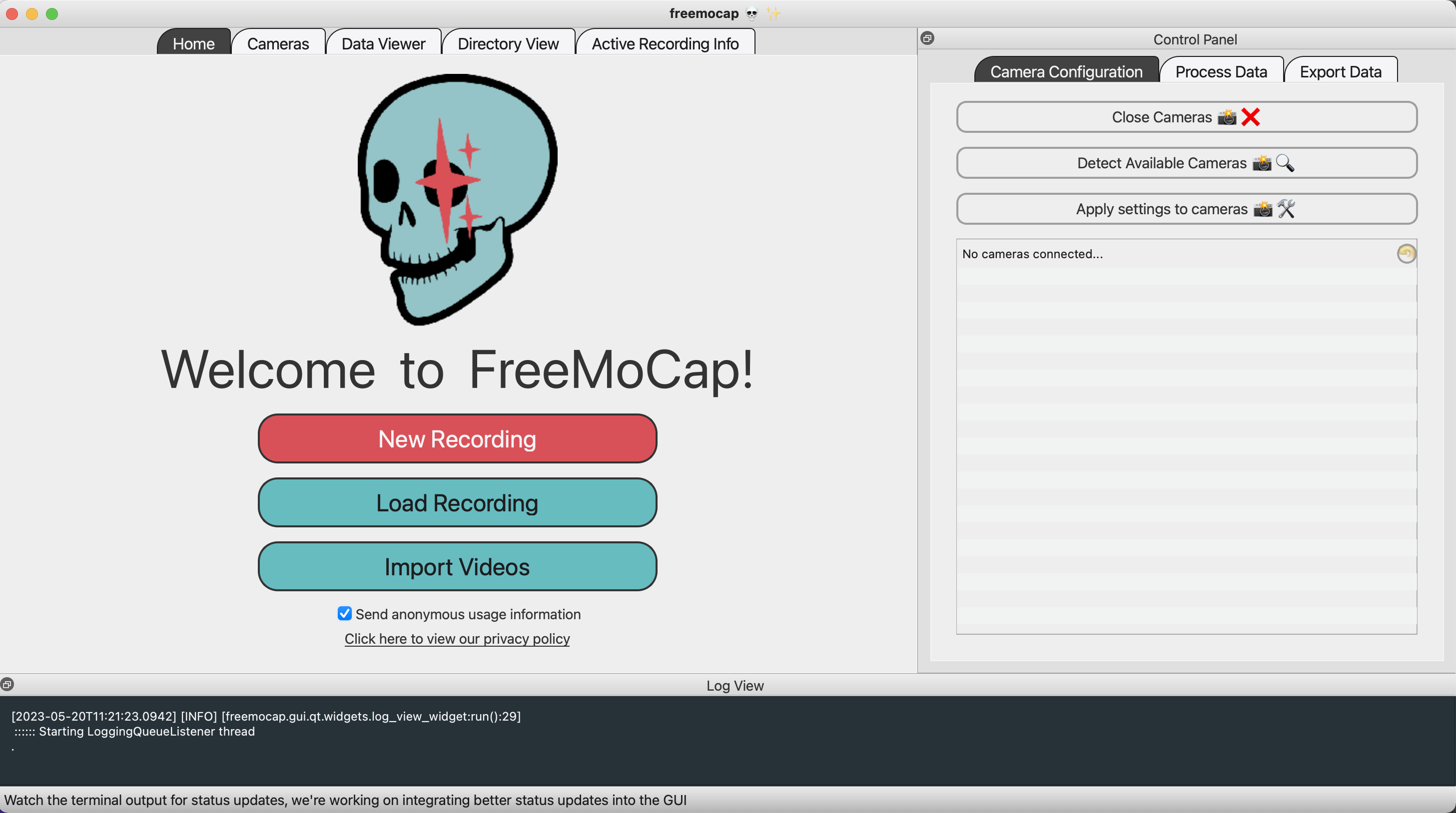
Congrats, you're in!
After following these steps, you should have FreeMoCap installed and ready to use!
You're ready to get Your first recording!
Installation problem?
First thing - Did you make a Python environment?
That is the root of most installation problems we see, so double check that part first!
If that didn't help, check here for solutions to common problems: Installation Troubleshooting