Open your recording in Blender
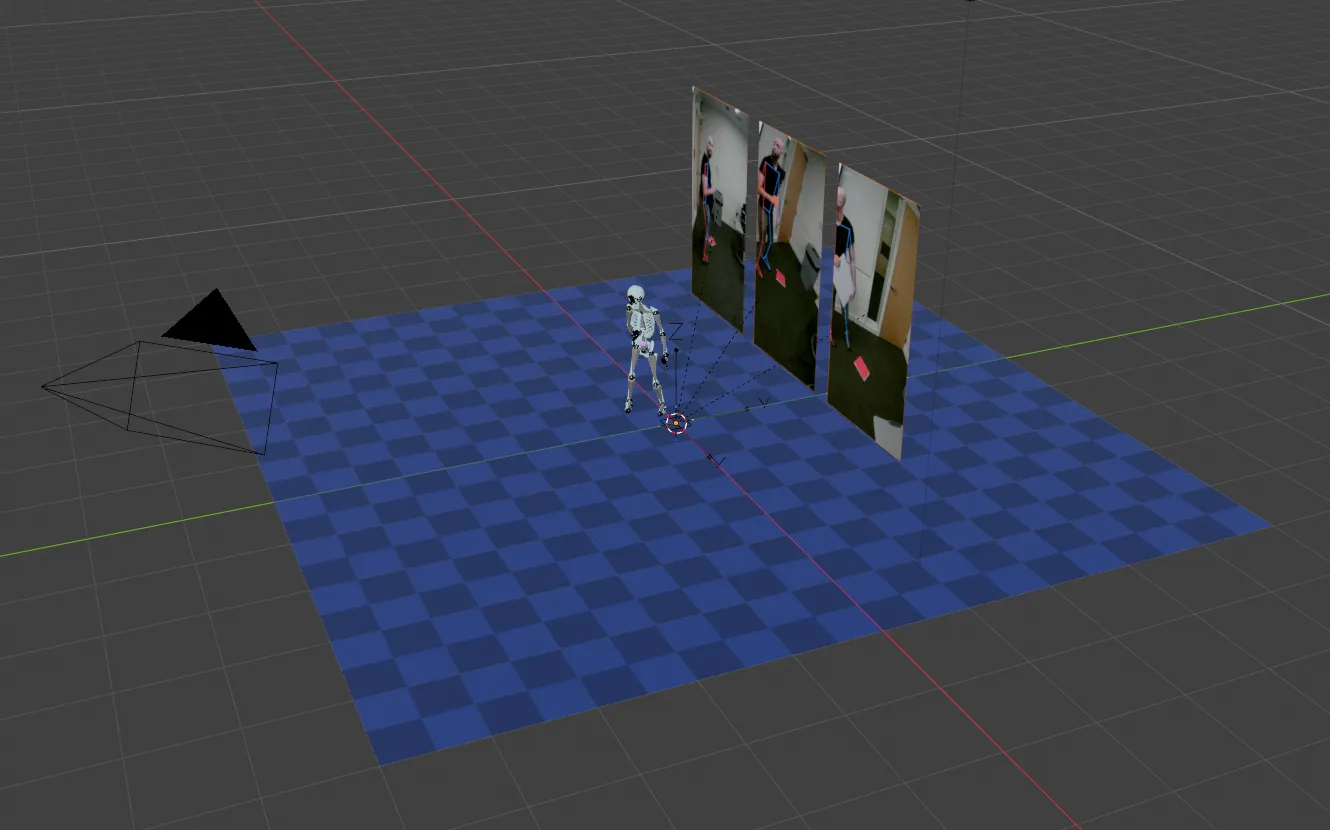
FreeMoCap can turn a processed recording into a Blender scene with an animated skeleton. It also saves the animation as FBX and BVH files you can use in other 3D software.
Blender export only works with recordings processed with the MediaPipe tracker. Choose it under Mocap Settings > Detector before you record or process.
Before you start
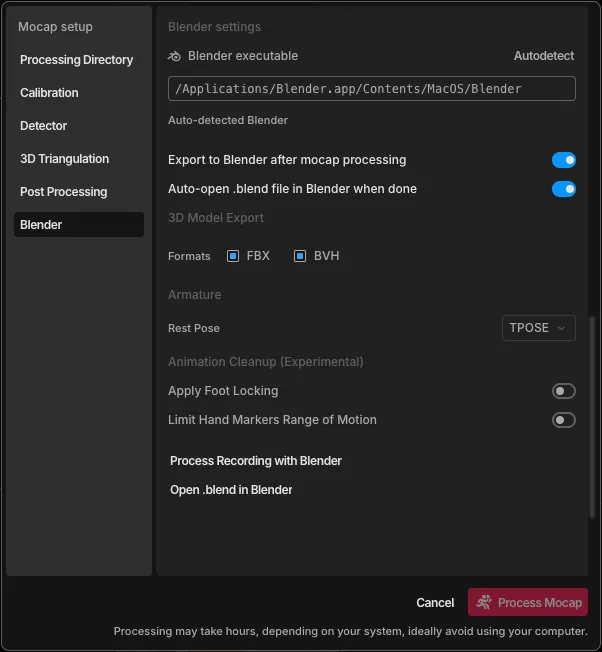
Install Blender. FreeMoCap finds it automatically. If it doesn't, click Select Blender executable in the Blender settings and choose your Blender app.
Export automatically
With Export to Blender after mocap processing turned on (it's on by default), FreeMoCap makes the Blender scene every time it finishes processing a MediaPipe recording. With Auto-open .blend file in Blender when done on, the scene opens in Blender straight away.
Export a recording you already processed
Open the recording in the Playback tab and click Continue to Mocap Setup. In the Blender settings, click Process Recording with Blender.
Export options
In the Blender settings you can choose:
- The files to make (FBX, BVH, or both). They're saved in the recording's
3d_modelsfolder. - The skeleton's rest pose: T-pose or A-pose.
- Apply Foot Locking, to stop feet sliding on the floor.
- Limit Hand Markers Range of Motion, to keep fingers from bending unnaturally.
Where the files go
The .blend file is saved in the recording's folder, named after the recording. See
find and read your output.
If something goes wrong
- Blender isn't found: install Blender, or click Select Blender executable and choose it.
- The export option is greyed out: the recording used RTMPose. Switch Detector to MediaPipe and process it again.
- Export fails: make sure the recording finished processing first.