Filter and fill your data
After FreeMoCap works out the 3D position of each point, it cleans up the data in two steps before saving it. Knowing about them helps you read your data correctly.
Filling gaps
Sometimes a point can't be placed in 3D for a frame, for example when too few cameras could see it. FreeMoCap fills these short gaps by interpolating between the frames on either side. Fewer gaps means better data, so good camera placement and lighting help. See optimize your capture space.
Smoothing
FreeMoCap then smooths each point's path with a low-pass filter (a Butterworth filter). It removes small frame-to-frame jitter while keeping the real, slower movement.
Smoothing too much can also remove real detail from very fast movements such as jumps and punches.
Changing the filter
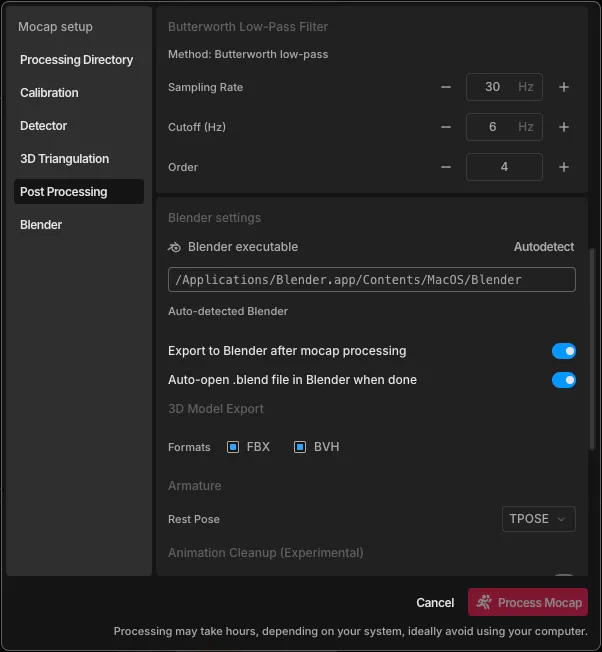
Open Mocap Settings and find Butterworth Low-Pass Filter:
| Setting | Default | What it does |
|---|---|---|
| Cutoff (Hz) | 6 | Lower smooths more. Raise it for fast movements. |
| Order | 4 | How sharply the filter cuts off. |
| Sampling Rate | 30 | The recording's frame rate. |
For recordings made in FreeMoCap, the sampling rate is set automatically from the recording. For imported videos, set it to your videos' frame rate yourself.
To apply new settings to an existing recording, process it again. Open it in the Playback tab, click Continue to Mocap Setup, then Process Mocap.