Record with one camera
Start with one camera. It's the quickest way to check that FreeMoCap works on your computer before you set up several cameras. One camera gives you 2D tracking, not reliable 3D.
1. Open FreeMoCap
Open FreeMoCap. The first launch can take a minute while it starts up. When the top-left corner says Connected, it's ready.
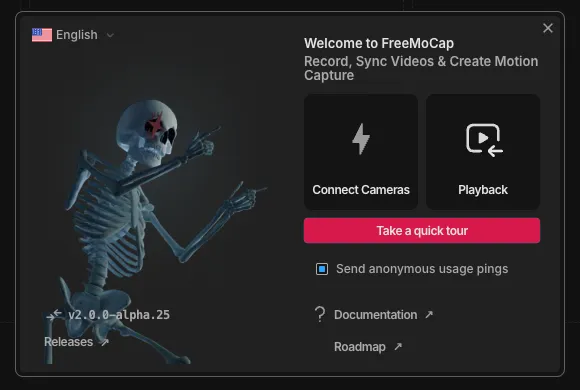
The first time you open it, a welcome screen offers Connect Cameras, Playback, and a quick tour. You can close it and carry on.
2. Connect your camera
Plug in a webcam (or use your laptop's built-in camera) and click Connect Cameras. Your camera's live view appears in the middle of the window.
If your camera doesn't show up, click the refresh button in the camera panel to scan again.
To change a camera's settings, such as resolution or exposure, expand its row in the camera panel. For sharp tracking, use a low exposure setting in a bright room. Cameras on Linux always use automatic exposure.
3. Choose a tracker (optional)
FreeMoCap uses the RTMPose tracker by default. If you want to open your recording in Blender afterwards, click Mocap Settings and change Detector to MediaPipe, because Blender export only works with MediaPipe for now.
4. Record
- Click Start Recording.
- Step into view and move around.
- Click Stop Recording.
You don't need to calibrate for a single camera.
Auto Process Mocap is on by default, so FreeMoCap processes the recording as soon as you stop. The first time, it downloads the tracking model, so stay online.
5. See your results
When you stop recording, a summary window appears. Click Open in Playback to review the recording. More on this in see what you made.
Next
Ready for 3D? Calibrate your cameras, then record with multiple cameras.