Process a recording after the fact
You can run motion capture on videos you already have, either a FreeMoCap recording you want to process again, or videos from your own cameras.
Bring in your own videos
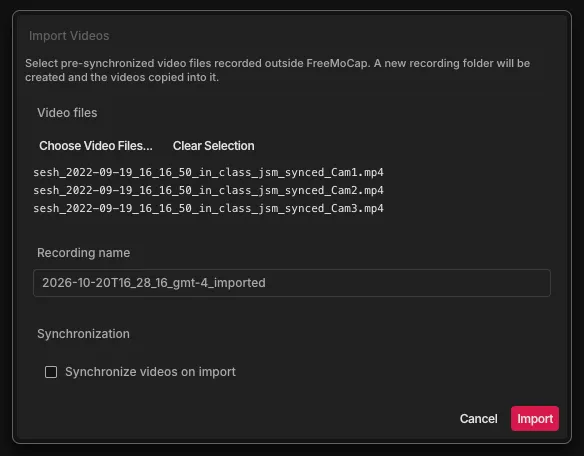
- Open the Playback tab and click Import Videos.
- Click Choose Video Files and select one video per camera.
- Give the recording a name.
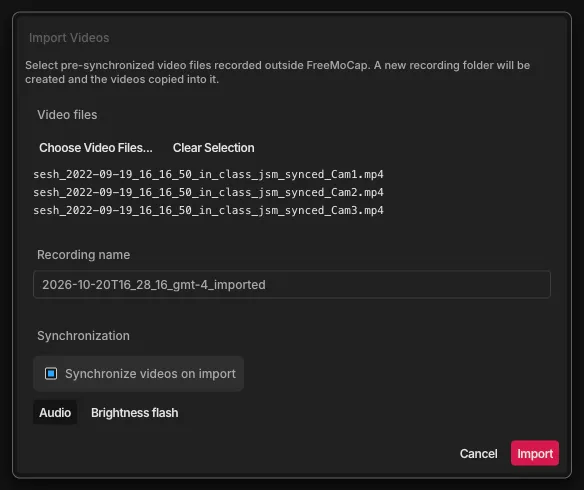
- If the videos weren't recorded in sync, FreeMoCap says the frame counts differ. Turn on
Synchronize videos on import and choose how to line them up:
- Audio, if all the videos recorded the same sound.
- Brightness flash, if you flashed a light that every camera saw.
- Click Import.
Synchronizing needs FFmpeg. If FreeMoCap says FFmpeg is missing, install it and restart FreeMoCap.
Process the recording
- In the Playback tab, select the recording. Then click Continue to Mocap Setup.
- Under Processing Directory, check that the recording's folder is selected. If Process Mocap stays greyed out, click the re-check button next to the folder.
- Under Calibration, choose the calibration that matches the cameras used. It must come from the same cameras, in the same positions. You can use an existing calibration file, import one, or calibrate from calibration videos. A single-camera recording doesn't need one.
- Under Detector, choose a tracker. See choose a tracking model.
- Under Blender, choose whether to make a Blender scene. See open your recording in Blender.
- Click Process Mocap and keep FreeMoCap open until it finishes.
For imported videos, also set the Sampling Rate under Post Processing to your videos' frame rate. See filter and fill your data.
Results are saved in the recording's folder. See find and read your output.
Processing again replaces the earlier results. Copy anything you want to keep first.
Troubleshooting
- "Frame counts differ": the videos aren't in sync, or a video from another session is in the folder. Remove stray videos, or synchronize on import.
- Calibration or camera error: the calibration was made with different cameras. Use one made with the same cameras.
- The 3D skeleton looks distorted: check the annotated videos. If the 2D tracking looks right but the 3D doesn't, a camera probably moved after calibration. Calibrate again and reprocess.
- Processing stops: report a bug and include your log file from
skellylogs_data/logsin your home folder.